How to use Check-in
Everything Check-in can do, screen by screen, in plain words. Start here if you're new, or come back when something changes.
Updated 13 October 2026 · What's new
What Check-in is
Check-in is a small, private app for checking in with yourself. Stop for a moment, name what you feel, and notice where it sits in your body and how it shifts. You can check in as often as you like, at any time of day.
- It's free. Everyone who joins before any paid plans are announced is a founding member, and everything in the app then stays free for them for as long as Check-in runs. See the terms.
- It's private. Only your account can read what you write.
- It works on your phone and on a computer, and keeps working when you're offline.
- Everything is optional. A single word is a check-in. So is a few lines of writing.
It isn't therapy, and it doesn't diagnose anything. Think of it as a mirror: it shows you what you put in, without judging it.
New since you last looked? See What's new for each change, newest first.
Getting started
Make an account
- Go to feelings.findmyway.life.
- Tap Create a free account. Use your email and a password, or Continue with Google.
- If you used email, open the link we send you to confirm it. Check your junk folder if it doesn't arrive. You can check in straight away. If your account has a second view, you need to confirm your email before you can use it.
You need to be 16 or older. Before signing up, you can try the feelings wheel on the home page. Any feelings you pick there are carried into your first check-in.
Put it on your home screen
Check-in works best as an icon on your home screen. It opens full screen, like any other app.
- iPhone or iPad: open the site in Safari, tap Share, then Add to Home Screen.
- Android: open the site in Chrome, tap the ⋮ menu, then Add to Home screen or Install app.
- Computer: use it in your browser, or install it from the address bar if your browser offers to.
Three things to set up first
You can skip these and come back later. Each takes a minute in Settings.
- Your scale. Name the levels you'll use to say where you are, such as Low, Steady and High. See Your own scale.
- Your values. Add the things that matter most to you, in your own words. See Living your values.
- Appearance. Light, dark, or follow your phone.
Checking in
The Check in screen is the heart of the app. On a phone it comes in two pages: the feelings wheel first, then the check-in itself.
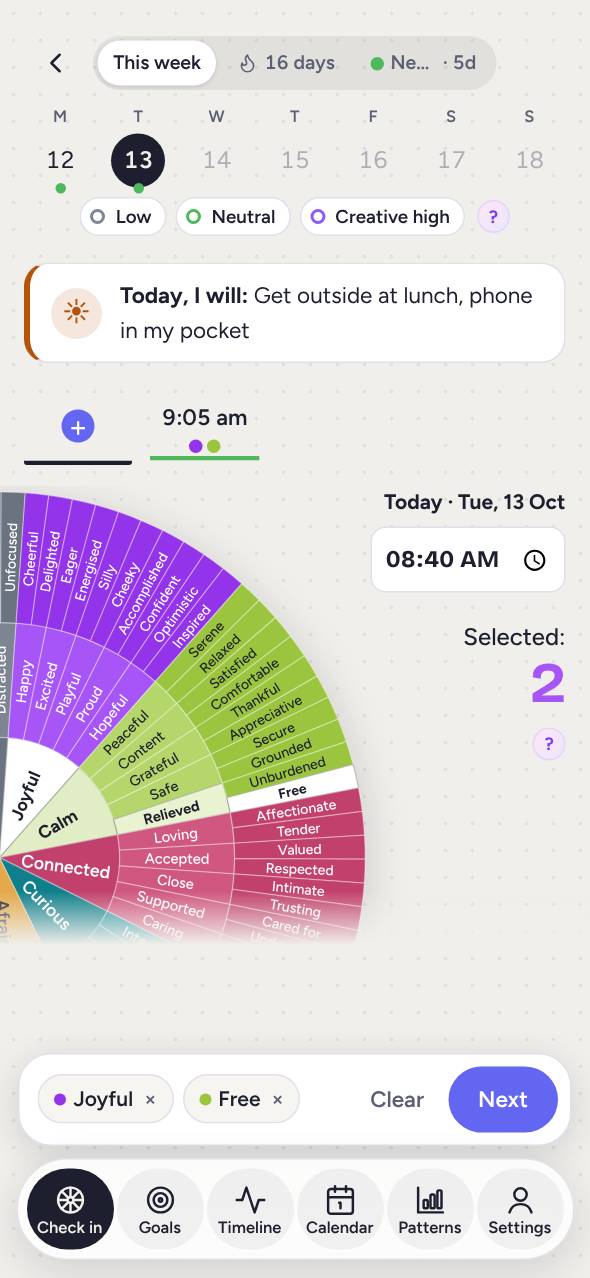
1. Find the words on the wheel
The wheel has three rings. The middle has 9 broad feelings, like happy, sad or scared. The outer rings get more specific, with over 150 words in all.
- Spin the wheel with your finger to see more of it.
- Tap a word to pick it. Tap it again to remove it. Each word has a short description to help you choose.
- Pick as many as fit. Mixed feelings are normal.
- Not sure where to start? Begin in the middle if all you know is "bad", or scan the outside for a word that tugs at you. See Naming feelings.
Your picks are listed under Selected feelings. Group sorts them by their broad feeling, Copy copies them to paste somewhere else, and Clear all starts again.
When you're ready, tap Next.
2. Add the details
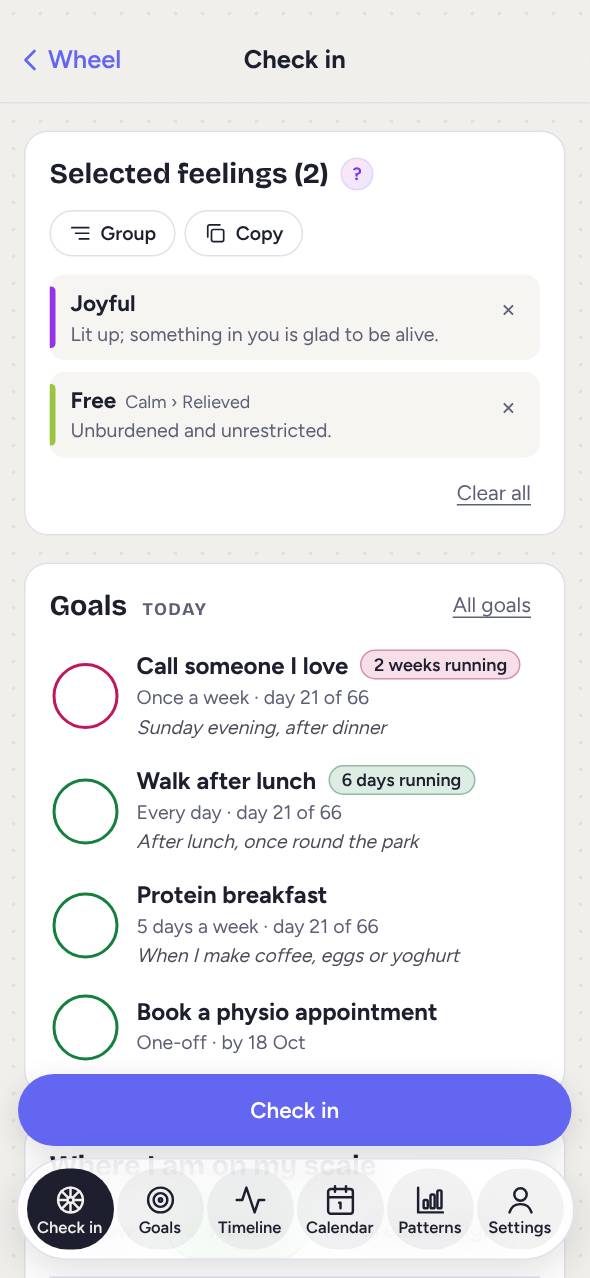
- When it happened. It's set to now. If the feeling came earlier, change the time. The app keeps both: when it happened, and when you wrote it down.
- Where I am on my scale. Tap the level that fits right now. 0 is your usual. See Your own scale.
- Goals. If you have goals for today, they're listed here to tick off. Ticks save straight away. See Goals and habits below.
- Notes. Anything you want to add, in your own words. To talk instead of typing, tap the microphone on your phone's keyboard.
Tap Check in to save it.
The week at the top
Above the wheel you'll see this week, one row of days, with your check-ins for the selected day underneath. Tap a day to see its check-ins, and tap a check-in to open it. The arrows go back a week at a time. Tap + to start a new check-in.
Next to the week is your mood streak: the level you're at now and how many days you've been there. Tap it to see the stretch. A long high or a long low can be worth talking over with someone you trust.
Open, change or delete a check-in
Tap a saved check-in to open it. It opens to read, so nothing changes by accident.
- Tap Edit at the top to change it, then Save changes. Cancel leaves it as it was.
- From a saved check-in you can Notice (the five steps below) or Notice again. If your account has it, you can also get A second view.
- Delete check-in removes it for good. Tap it twice to be sure.
Just write
Sometimes there's no word for it, or you just want to write. On the wheel page, with nothing picked, tap Just write. You get a page for your words and nothing else. It's saved as a journal entry, and shows in your timeline with a "Journal entry" label.
If you like, a journal entry can be summarised into your own journal's sections: a summary, events, ideas, tasks and people. Your own words are always kept exactly as you wrote them. You can Copy or Share the summary to paste it into a journal elsewhere. In Settings → Journal summaries you can change the sections, or have every journal entry summarised when you save it.
Noticing, step by step
Naming a feeling is a good start. Noticing it is where things can shift. After you check in, you can go through five short steps. Every step is optional, and you can stop at any point.
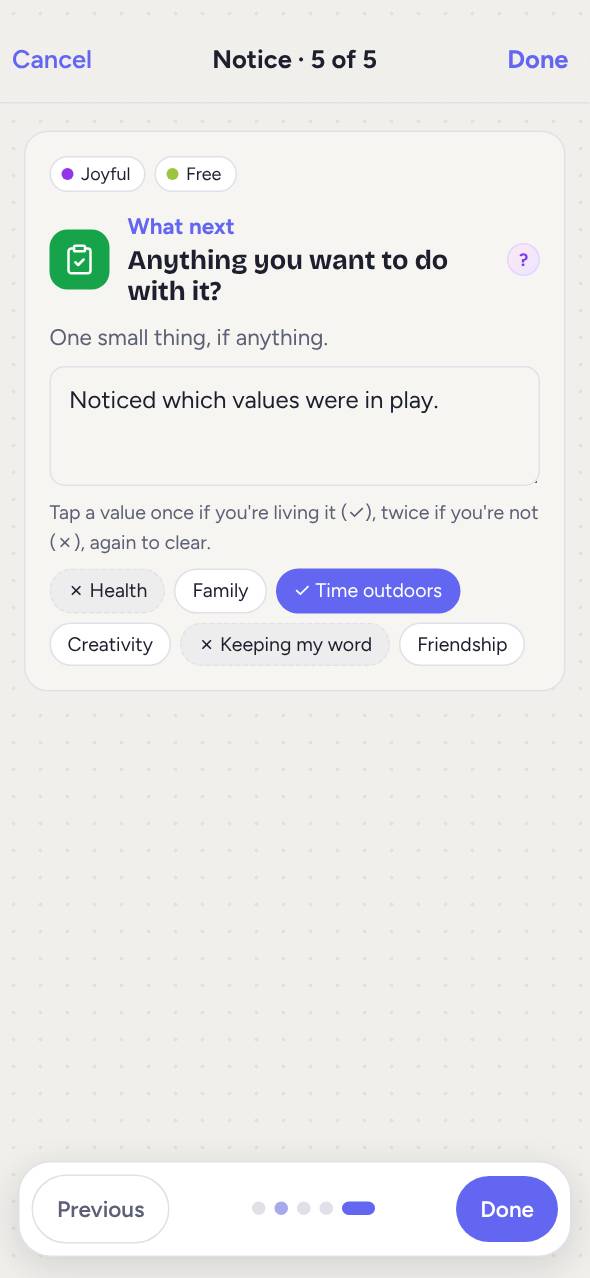
- What it is. How strong is it right now, from barely there to all of you? What's going on?
- Where it sits. Tap the body outline wherever you feel it, front or back, as many places as you like. Then say what it's like: tight, heavy, buzzing, numb. See Feelings in the body.
- What it's asking for. Rest, space, connection, a boundary? Naming the need is enough. See Holding a feeling.
- How it shifts. Stay with it for three slow breaths, then notice it again. Softer, stronger, somewhere else?
- What next. One small thing you might do, if anything. Tap a value once if you were living it (✓), twice if it got squeezed (✗), and a third time to clear it. See Living your values.
Use Next and Previous to move between steps, or tap the dots at the top to jump to one.
Notice again
Feelings move. Later on, open a check-in and tap Notice again to record how it is now.
- Did it move? Eased, changed into something else, still here, or stronger. All are worth noting.
- What happened? Tap any words that fit, like Relief, Lighter or Still heavy, or write your own.
- What helped? Naming it, writing, a walk, talking to someone, time.
- Optionally, name what's here now and how strong it is now.
Each time you notice again is kept with the check-in, so you can see how a feeling changed over hours or days. Nothing moving is fine too. See Noticing shifts.
A second view
The second view isn't part of the free app: it's only on accounts it's switched on for. If you don't see A second view on a check-in, your account doesn't have it, and nothing you write goes to an AI.
Where it's on, an AI can read a check-in and reflect it back to you in a few gentle sentences, using your own words. It ends with one question to sit with. It doesn't judge, diagnose or tell you what to do.
- Open a check-in and tap A second view, then Get a second view.
- The first time, the app tells you exactly what is sent and asks first. Nothing is sent unless you say OK, send it.
- Read it. Tap Save changes to keep it with the check-in.
Good to know:
- What's sent is the check-in (feelings, notes and noticing), your values and your first name. It goes to Google's Gemini AI. Google doesn't use it to train its models.
- You need to have confirmed your email first.
- There's a daily limit of a few second views each day.
- If what you've written suggests you might be in danger, the app shows you how to reach a counsellor straight away.
- It's a second view, not the right answer. You know yourself best.
Morning and evening check-ins
Trying out. Switch it on in Settings → Trying out.
Two short check-ins that bookend your day. Every question is optional. Showing up is the point.
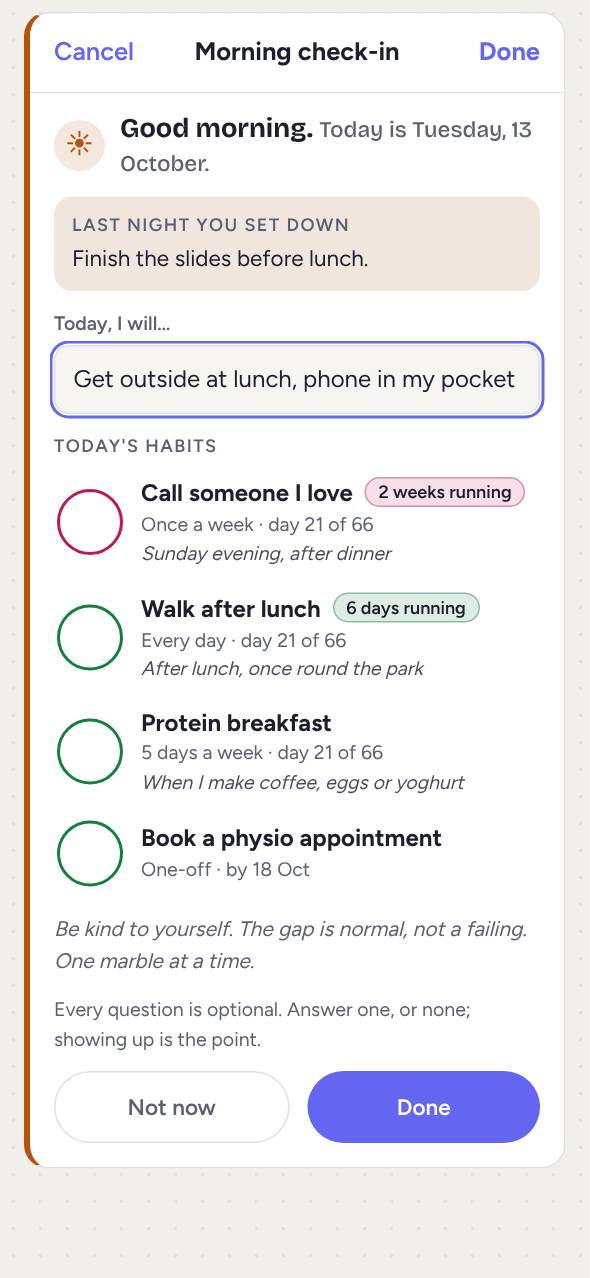
- In the morning (from 4am until 2pm), a small Morning check-in button sits in the corner beside the wheel. It takes about a minute: "Today, I will…" and today's habits with their when and where. Your intention then stays in that corner all day. Tap it to read it in full or change it.
- In the evening (from 5pm until 4am), an Evening check-in button takes its place. It takes a few minutes, in three short steps: how the day went; what went well or what you're grateful for, with today's habits; and anything to set down for tomorrow. Tap Next and Back to move between them.
Each one picks up from the other. The evening shows the morning's intention, and the next morning shows what you set down the night before.
Each one is a page of its own. Done at the top right saves what you've written, from any step, and Cancel at the top left takes you back to Check in without saving.
Tap the button to begin. On the first step, Not today puts the invitation away until the next one. If you miss one, nothing is counted and nothing is said.
Goals and habits
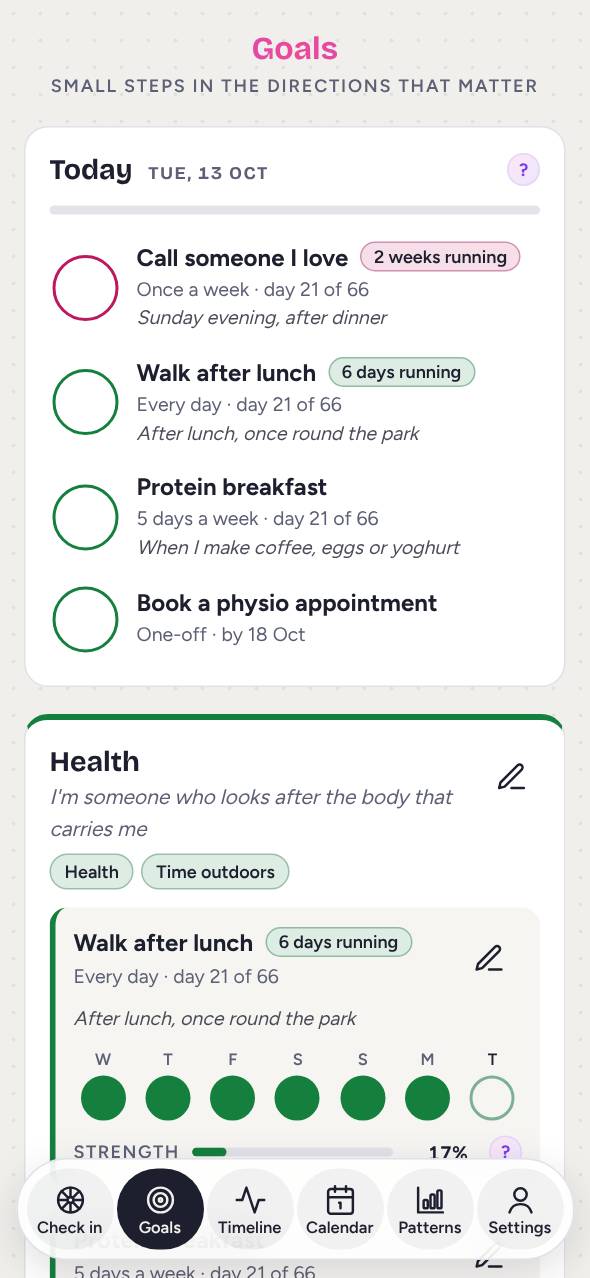
The Goals screen is for small steps in the directions that matter to you.
Themes
A theme is a direction you keep walking in, like Health or Family. You never finish it. Link it to your values and finish the line "I'm someone who…".
Goals inside a theme
- A habit to build: something you want to become automatic, like a walk after lunch. Say when and where you'll do it, how many days a week (every day, once a week, or anything between), and how long to give it: 30, 66 or 90 days.
- A thing to do once: a milestone, like booking an appointment. Give it a date if you like, and tick it once when it's done.
As you fill a goal in, the letters S M A R T light up: specific, measurable, achievable, relevant and time-bound. Nothing is required. It's a nudge towards a goal you can actually tick.
Ticking things off
- Tick a habit on the days you do it, on the Goals screen or right inside a check-in.
- Tap a day a second time to mark a rest day. Rest days never count against you. A third tap clears it.
- The strength bar shows how well your last few weeks met your target. It's not a fragile streak: one missed day only lets it dip a little.
- When the time you gave a habit is up, the app asks whether it feels established or needs two more weeks. You can call it established sooner, whenever it feels part of you.
Habit runs
Trying out. Switch it on in Settings → Trying out.
Each habit shows its run while it's going, such as "6 days running". A few runs get a bigger moment: a week, a month, and day 66. Coming back after a gap gets "Back on it", or a welcome back. A run that ended is never counted or shown.
The shelf
Established habits and finished one-offs stay on the shelf under their theme, as a record of how far you've come. You can also Pause a goal, or Let it go if it no longer fits. Choosing what to drop is part of living by your values.
On a computer, the Goals screen spreads out to make setting things up easier. More in Goals and habits.
Timeline
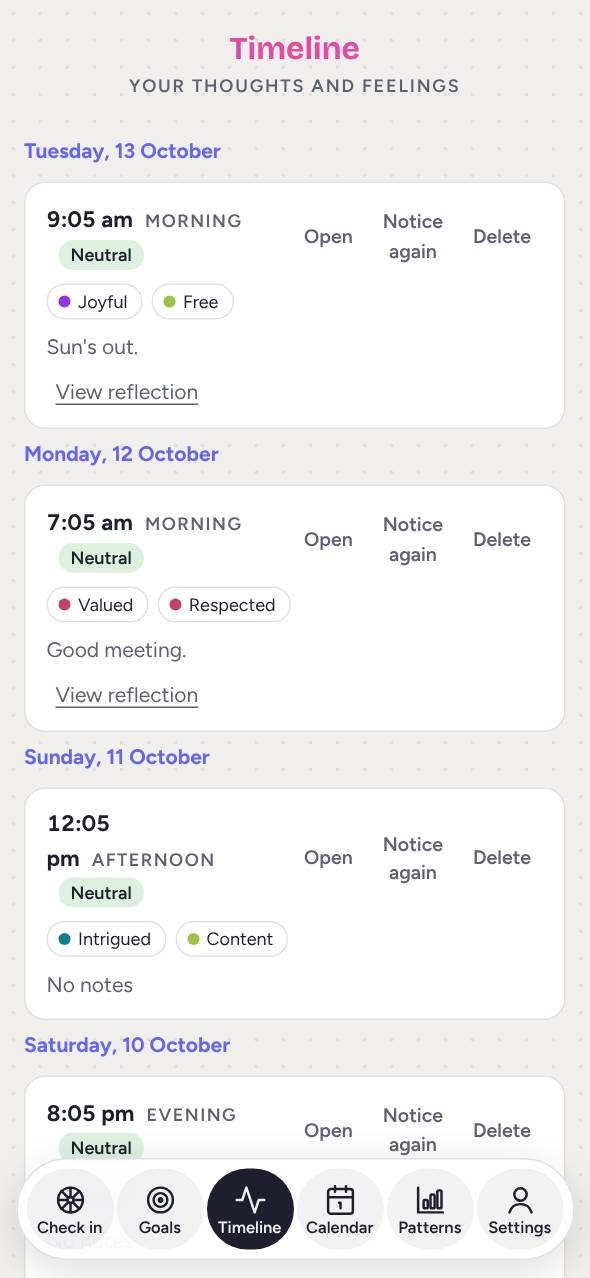
Timeline lists every check-in, newest first, grouped by day, with its time, your level, the feelings you picked and your notes. Each one has Open, Notice again and Delete, and View reflection shows what you noticed and any second view.
Calendar
Calendar shows a year at a glance, with every day you checked in shaded from fewer to more. You'll see your current streak and your longest one, and a gentle note when you reach a milestone. Tap a day to open it.
If you've brought in history from another app, those days show here too.
Patterns
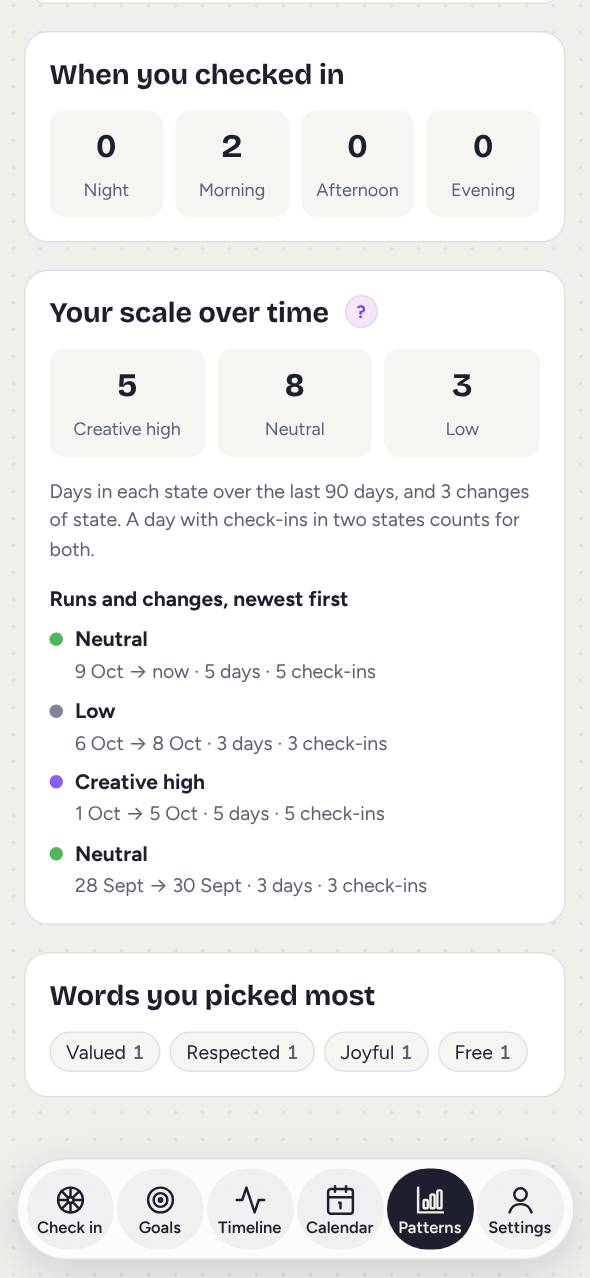
Patterns shows what your check-ins add up to over time. Use the arrows to move between weeks, and the buttons under them to look at the full day or one time of day.
- Core emotions: which broad feelings came up most.
- When you checked in: night, morning, afternoon or evening.
- Your scale over time: how many days you spent at each level, and each run and change, newest first.
- Words you picked most: the feelings that keep coming back.
Patterns you can't see day to day become clearer over a few weeks. They're patterns, not verdicts.
Settings
- Account: your name, and Sign out.
- Your scale: name each level in your own words. Add up to three above and three below 0.
- Your values: add, change or remove them. One of them is shown each day at the bottom of the check-in screen.
- Journal summaries: the sections a journal entry is summarised into, and whether to do it every time.
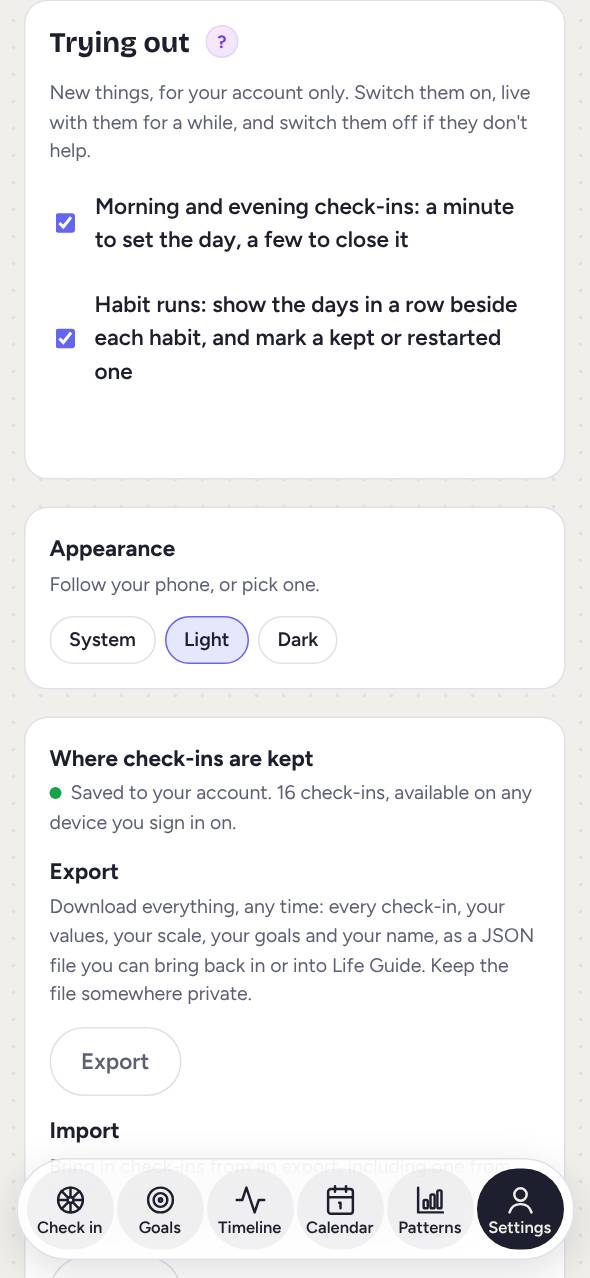
- Trying out: new features you can switch on for your account, live with for a while, and switch off if they don't help.
- Appearance: light, dark, or follow your phone.
- Where check-ins are kept: whether everything is saved and up to date.
- Export: download everything (check-ins, values, scale, goals, morning and evening check-ins and your name) as a file. Keep it somewhere private.
- Import: bring check-ins back in from an export, or values from a file. Anything already here is skipped. Imported values and scale replace yours.
- Delete account: permanently deletes your account and everything in it. Export first if you want a copy.
Ways to use it
Check-in is built to work for as many people as possible.
- Talk instead of typing. Anywhere you can write, tap the microphone on your phone's keyboard and speak.
- Screen readers. Buttons are labelled for VoiceOver, TalkBack and other screen readers, and the wheel tells you each feeling as you move to it.
- Keyboard. On a computer, you can use the wheel without a mouse. Arrow keys move around it: up and down go around a ring, right goes to more specific feelings, left to broader ones. Press Enter to pick a feeling, or type the first letters of one to jump to it.
- Light or dark. Choose in Settings → Appearance, or let it follow your phone.
- These guides follow your device's text size, and you can zoom in on them.
If something gets in your way, please tell us. See Getting help.
Your privacy
- Only your account can read your check-ins. They're encrypted when they're sent and when they're stored.
- They're backed up, so a mistake or an outage won't lose them.
- They're never sold, and never used to train AI.
- Nothing goes to an AI unless you ask for a second view or a summary.
- You can export everything, or delete your account and everything in it, at any time.
The privacy policy has the details.
Phones, computers and offline
- Use the same account on your phone and your computer. Changes show on both.
- If you change the same check-in on two devices, the changes are merged, so nothing is lost.
- No signal? Keep checking in. Your check-ins are kept on your device and saved to your account when you're back online.
Getting help
- Tap any ? in the app for a short explanation, with a link to the full guide. The guide opens over the app; tap Done to go back.
- All guides are here, free to read on any phone or computer.
- Something not working, or an idea? Email privacy@patternode.com.
If you save a check-in, a Notice again, or a morning or evening check-in with words that suggest you might be in danger, the app shows how to reach 1737 and 111 straight away. That check happens on your phone: nothing is sent anywhere, and nobody else reads what you write.
If things feel like too much: stop, ground yourself, and reach out. In Aotearoa New Zealand, call or text 1737 any time to talk with a trained counsellor, free. In an emergency, call 111.